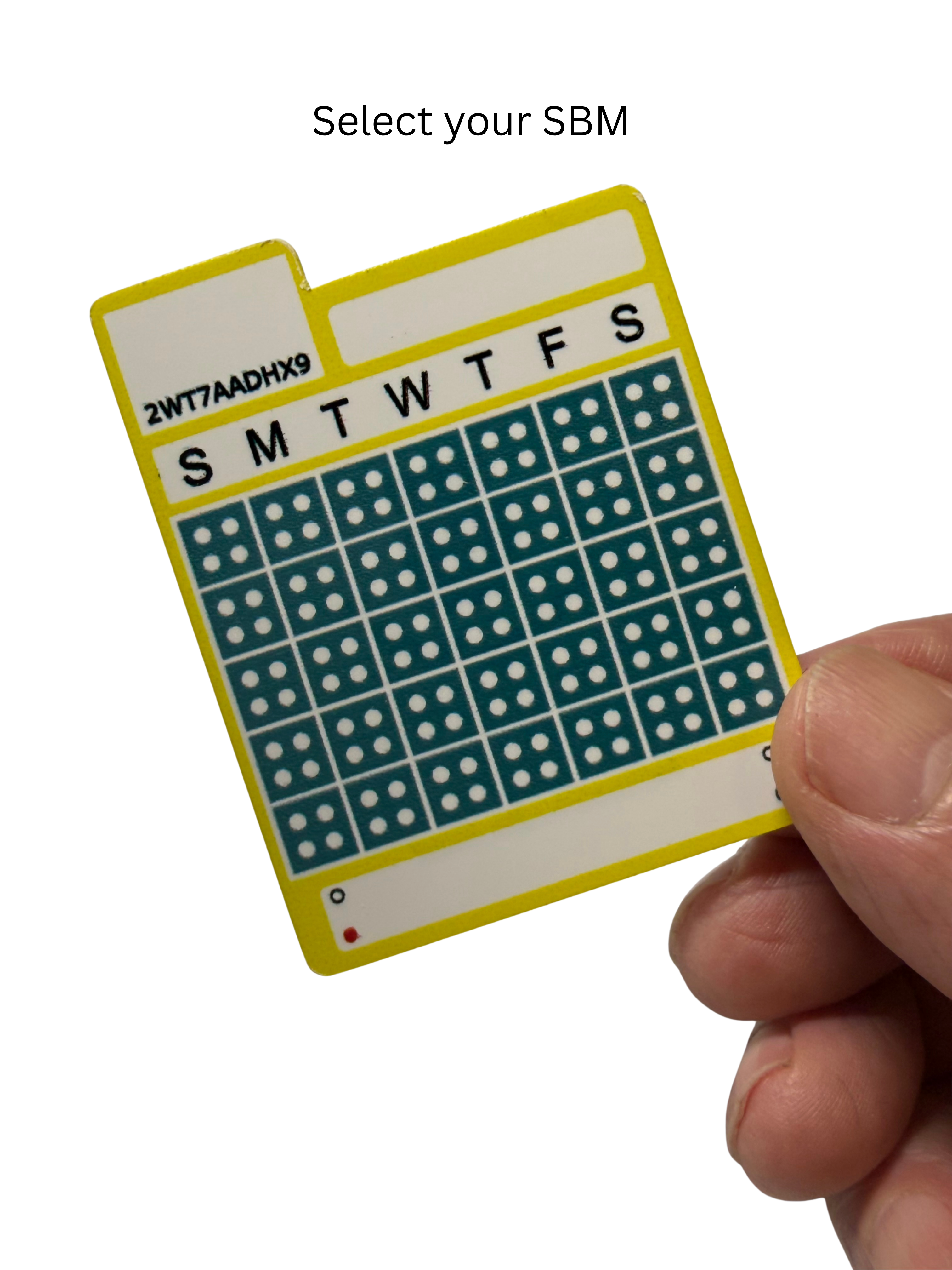
Select your Spatial Behavior Matrix
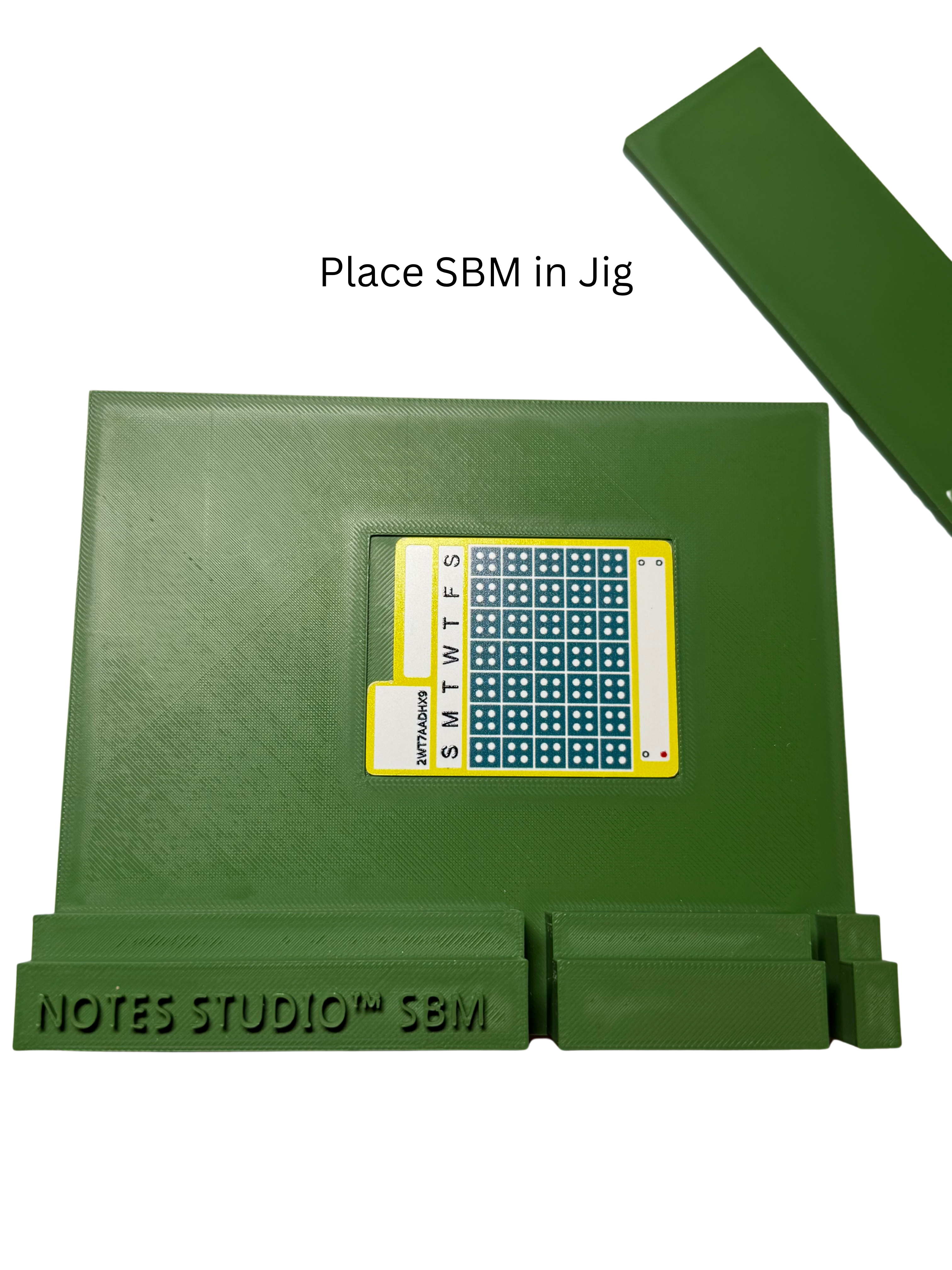
Place SBM in green Jig
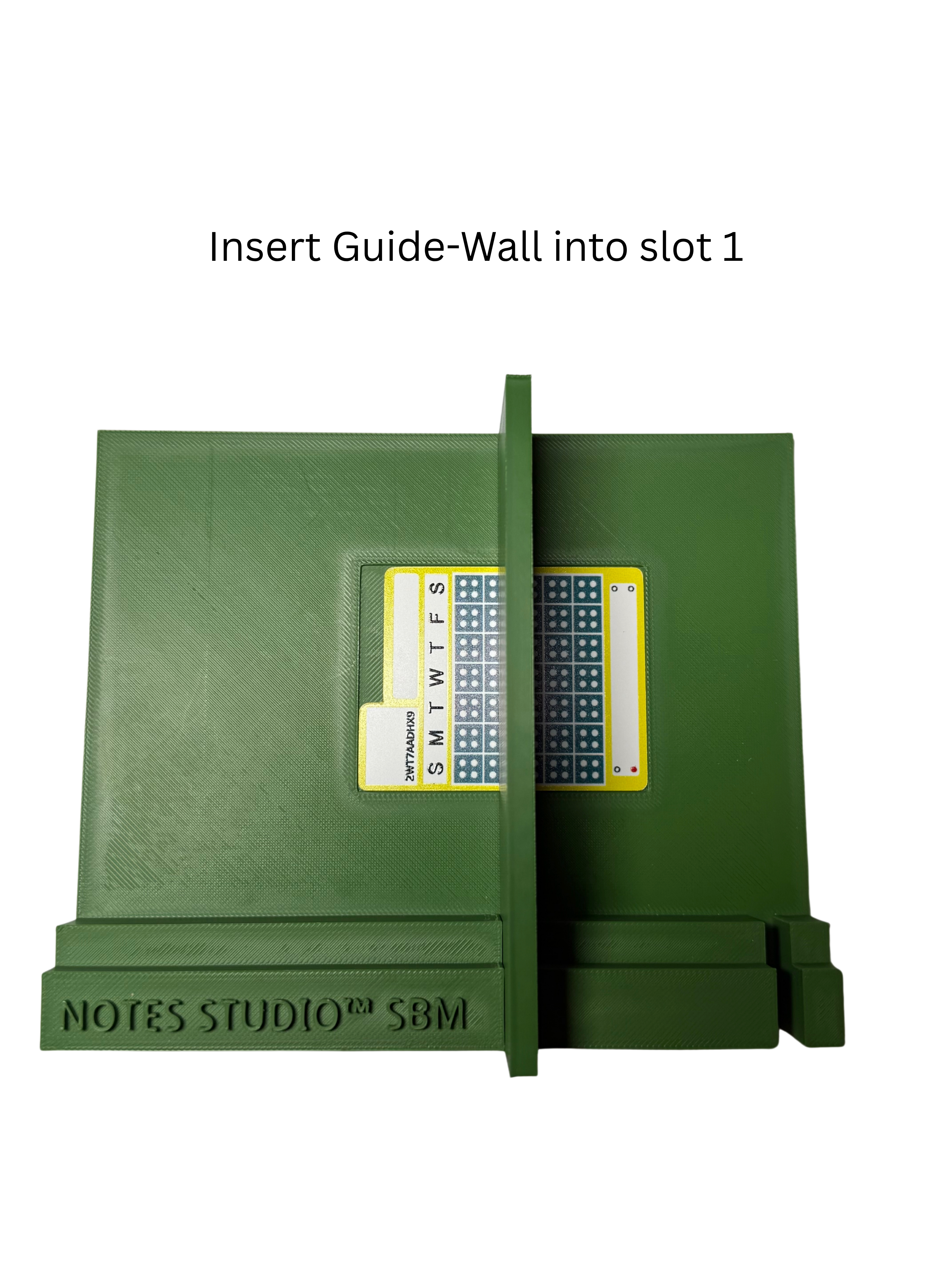
Insert Guide-Wall into Slot 1
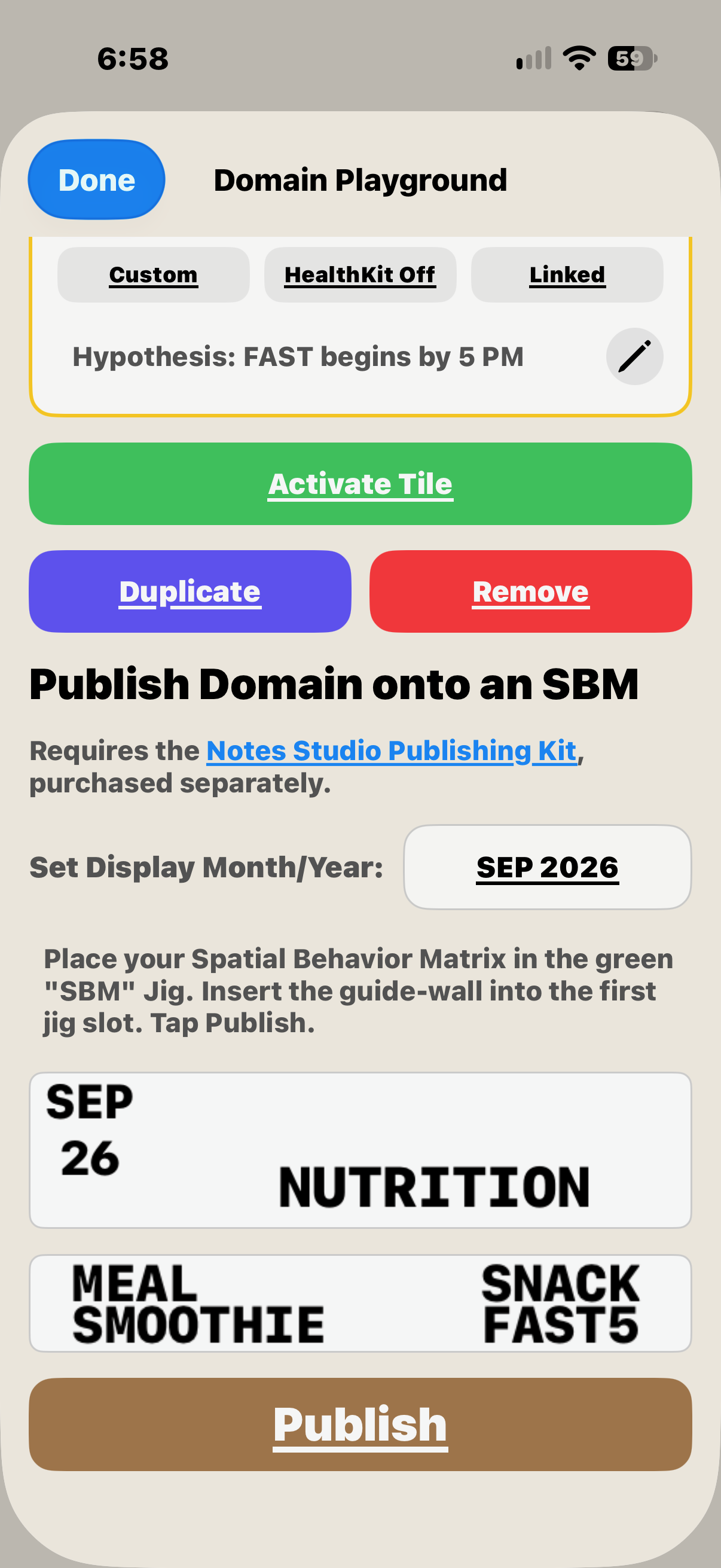
In SBM app, tap 'Publish'
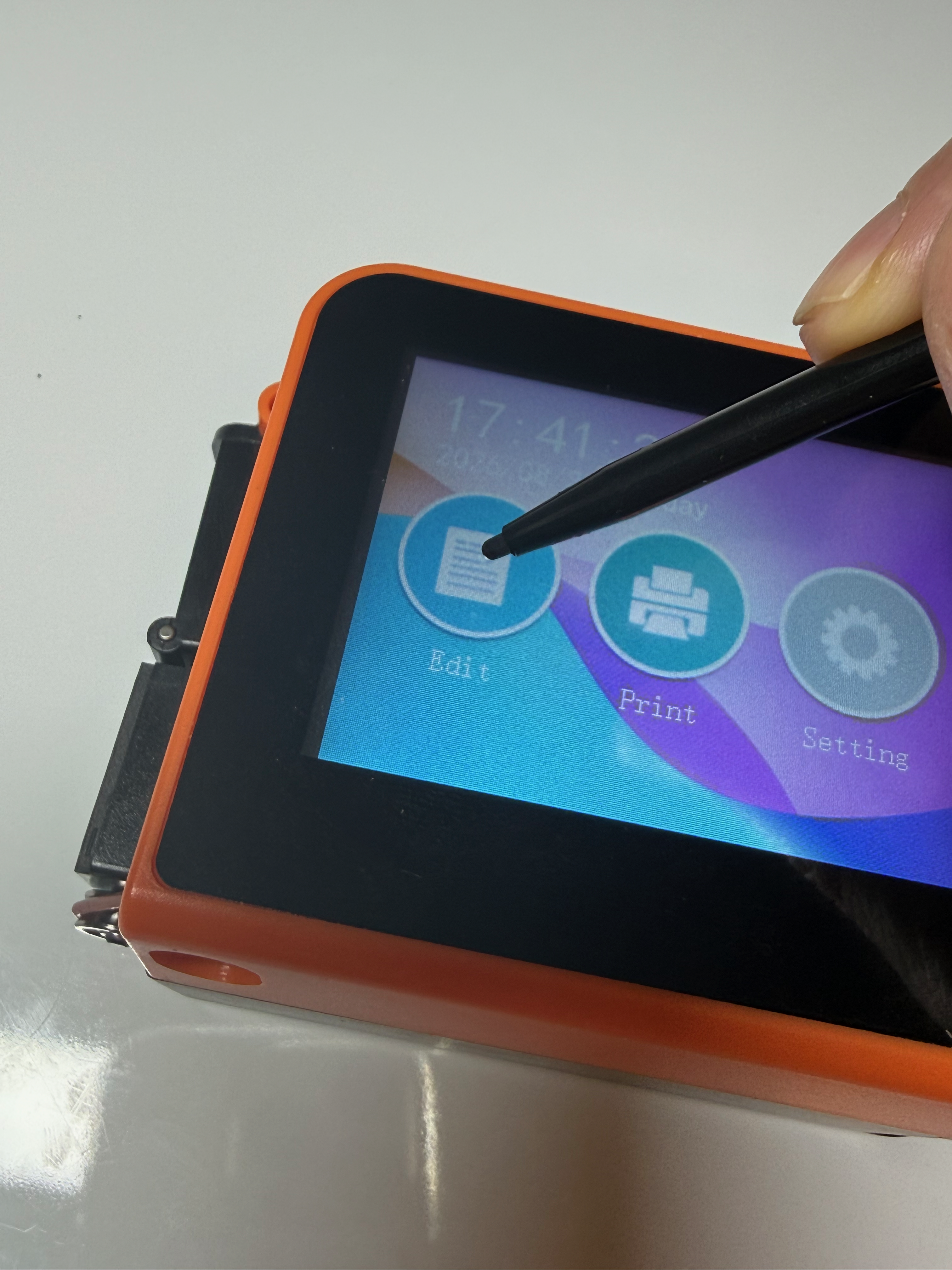
On printer, tap 'Edit'... then File: New
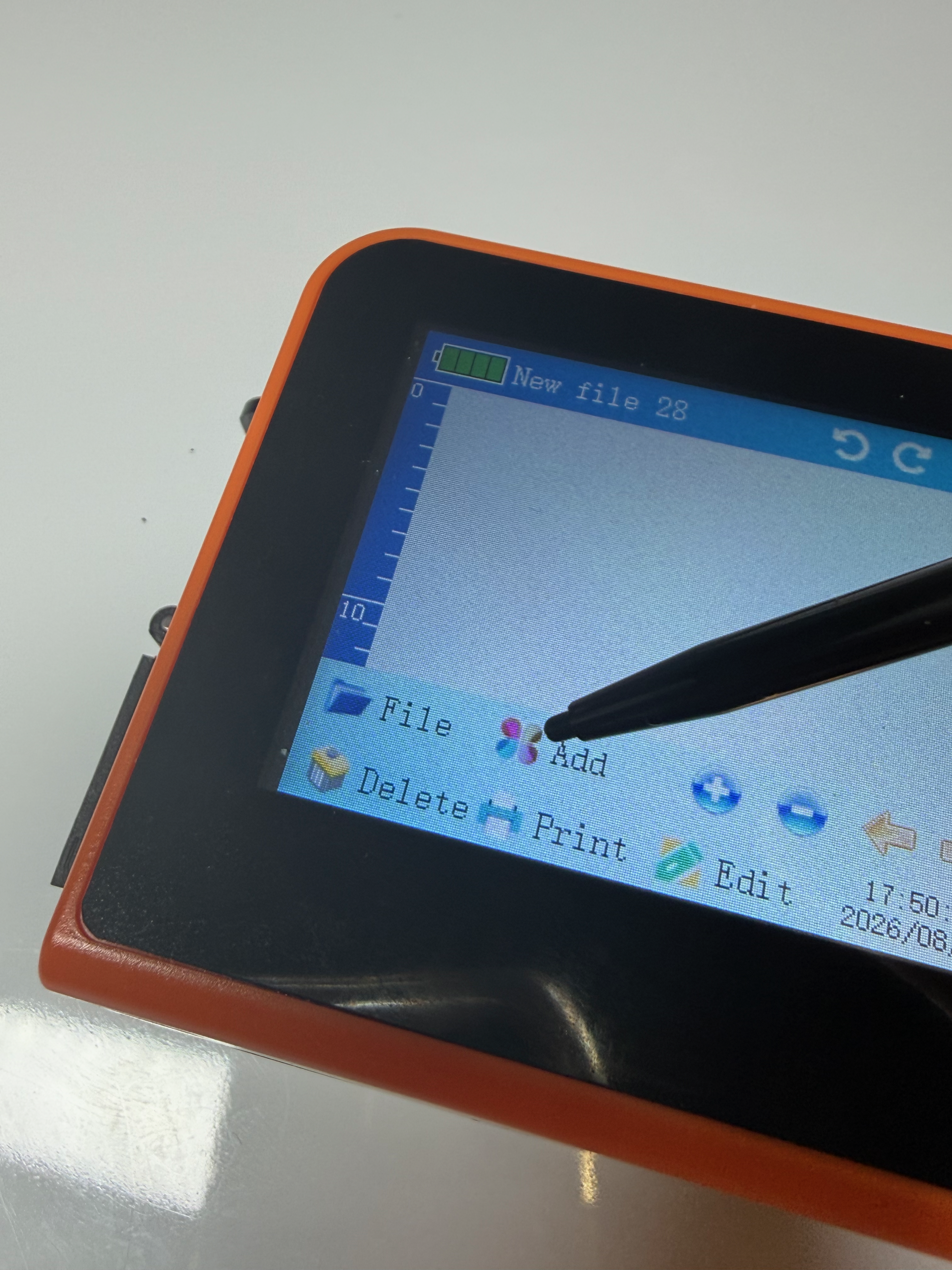
Tap 'Add'
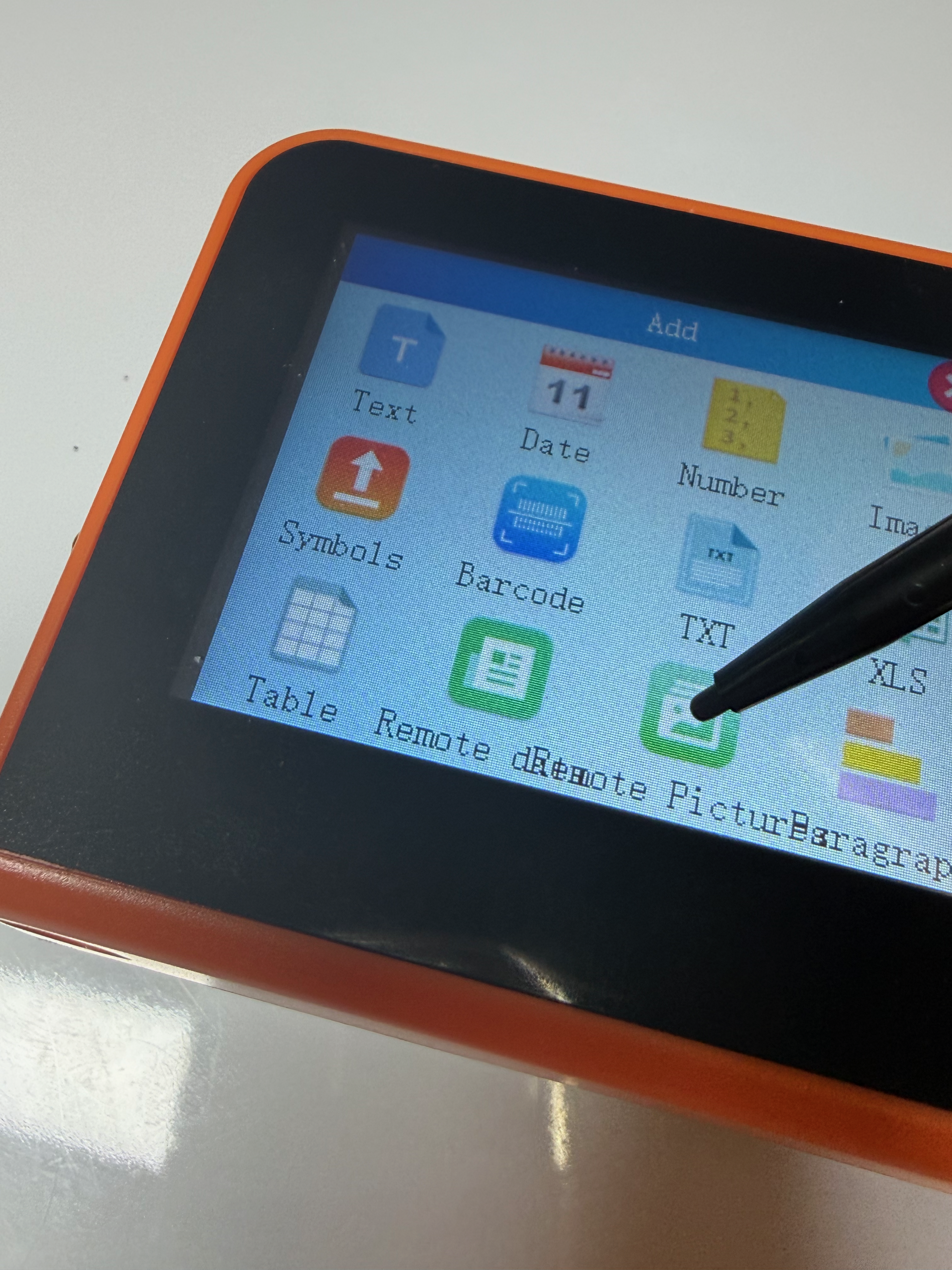
Tap 'Remote Picture'
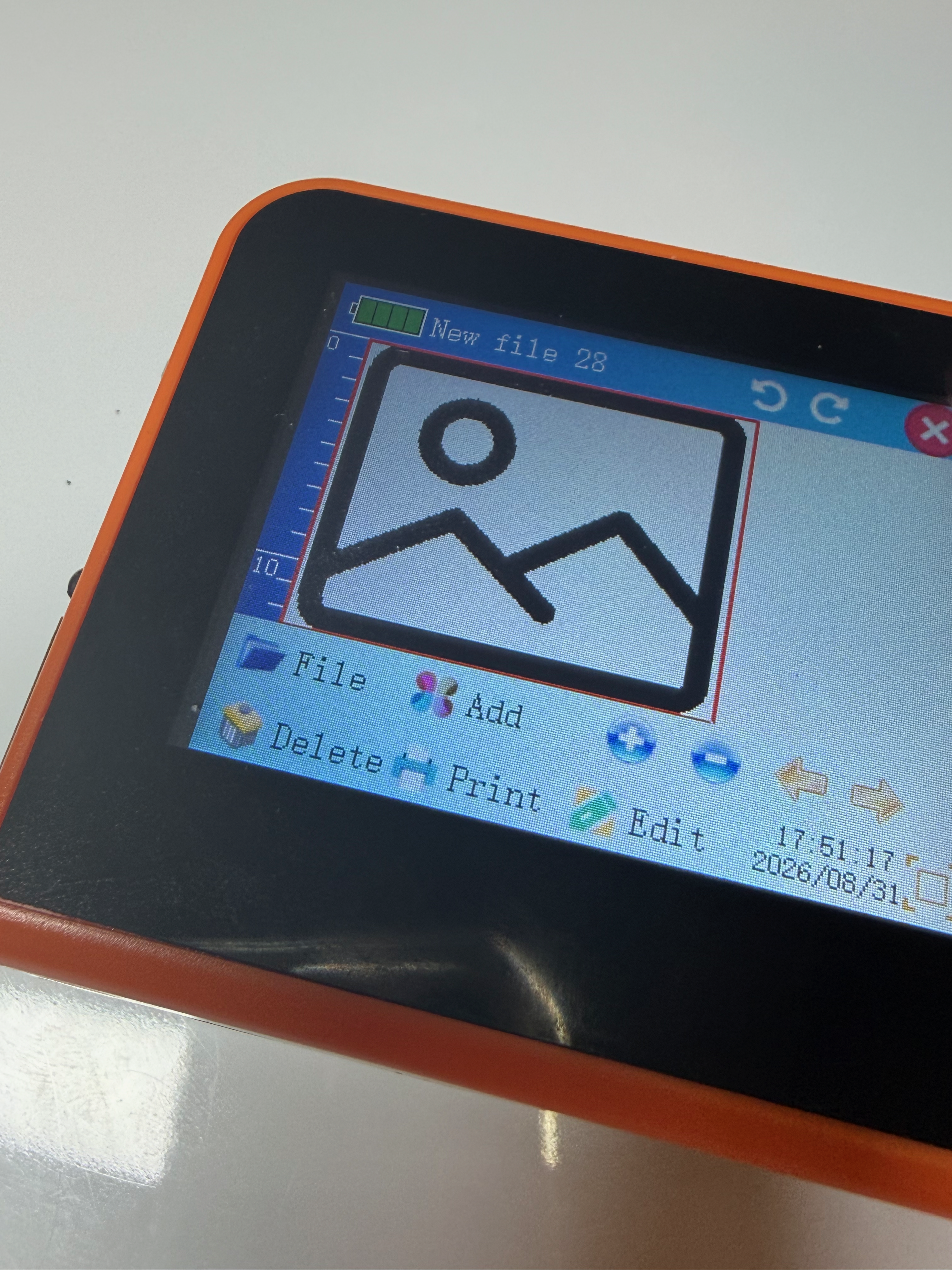
Ready to receive
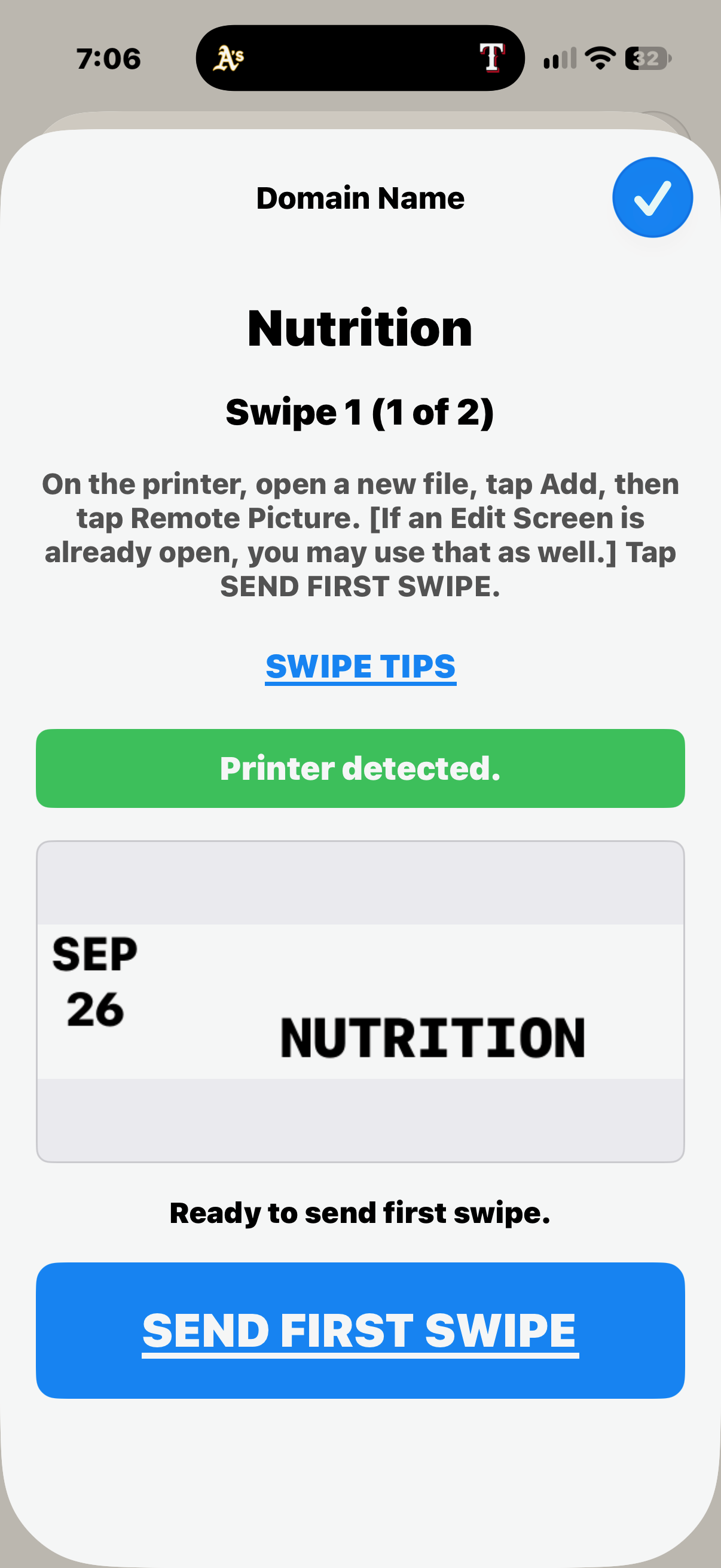
Tap 'SEND FIRST SWIPE'
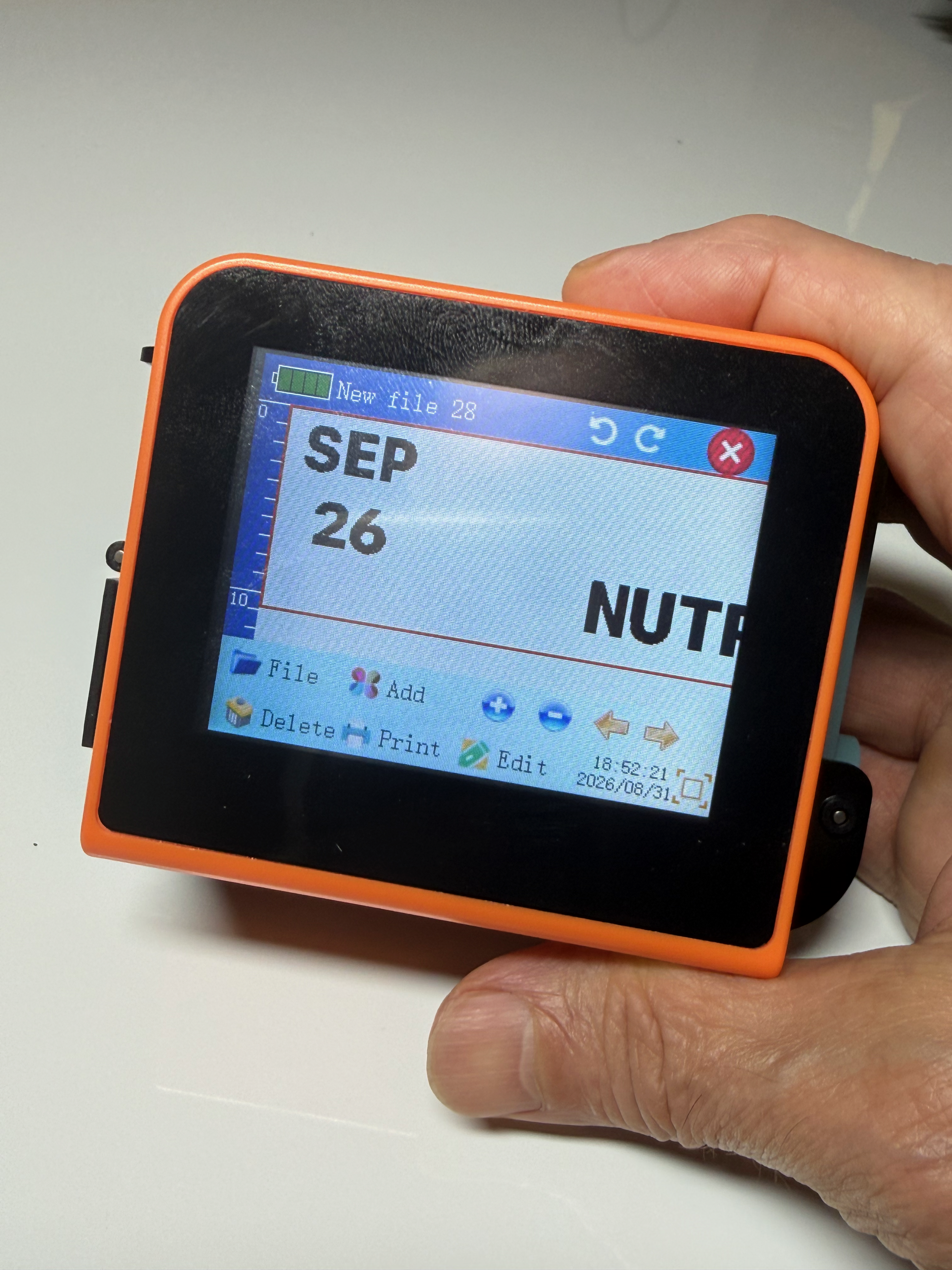
Your Domain, Month & Year is displayed
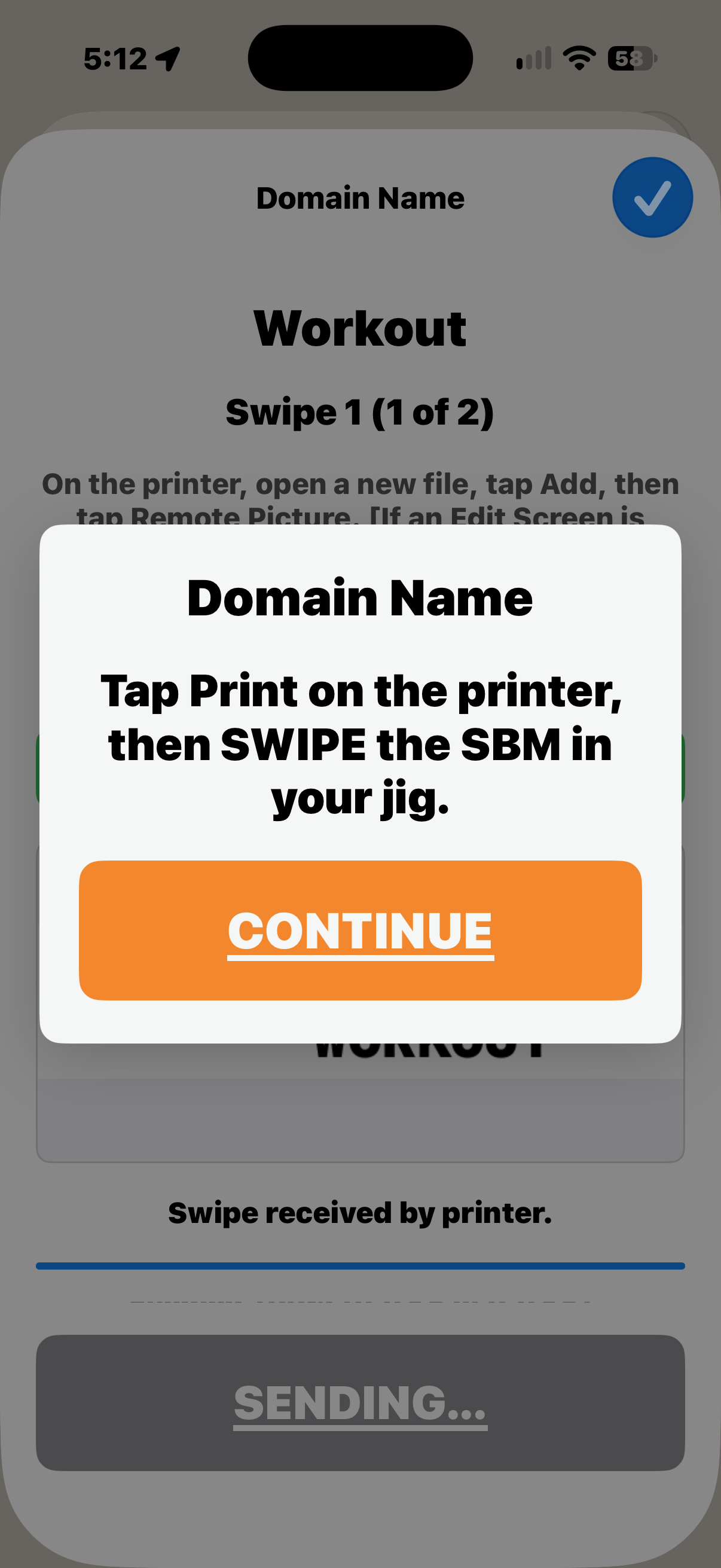
SBM app instruction
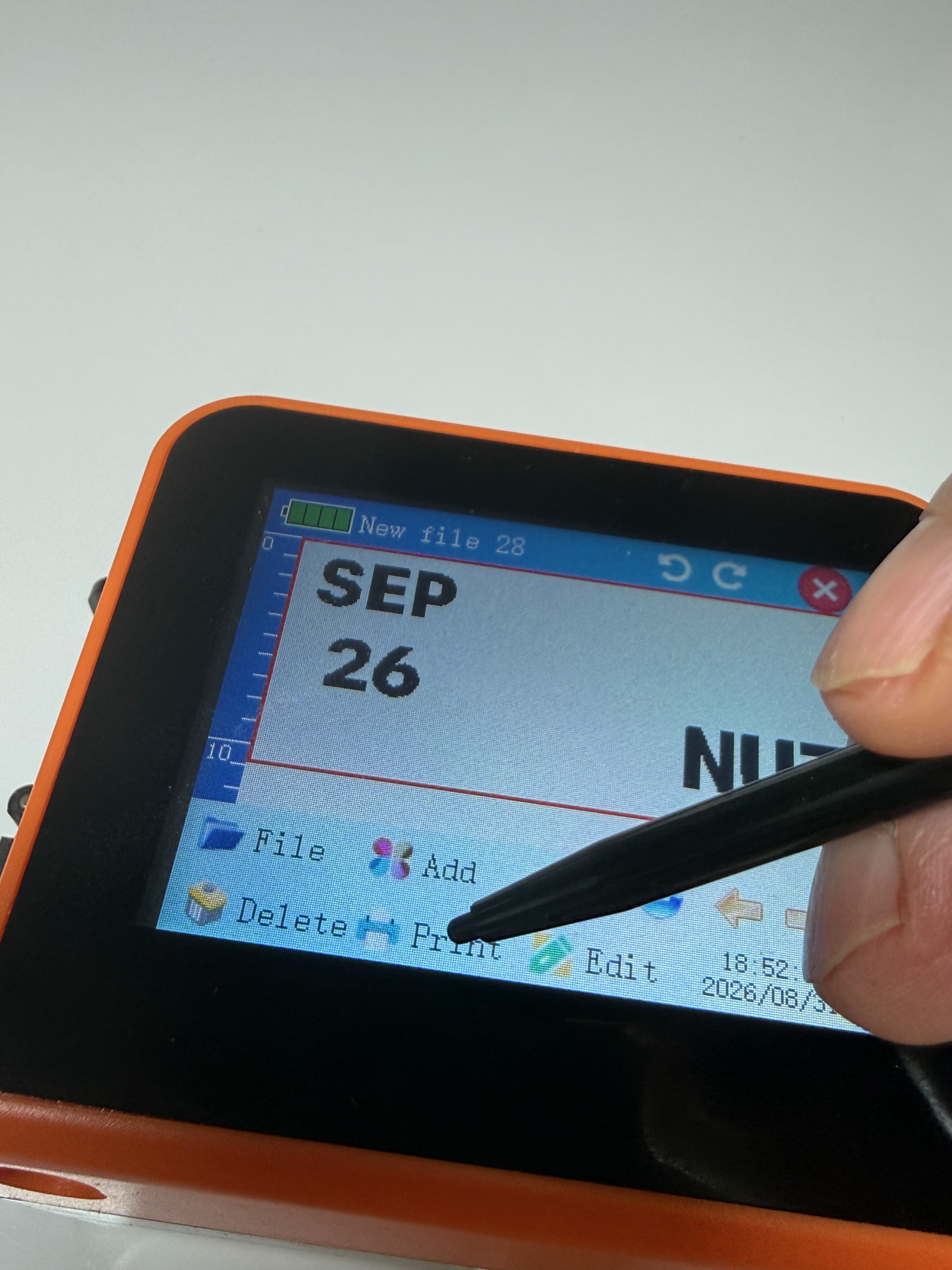
Tap 'Print' button on printer screen
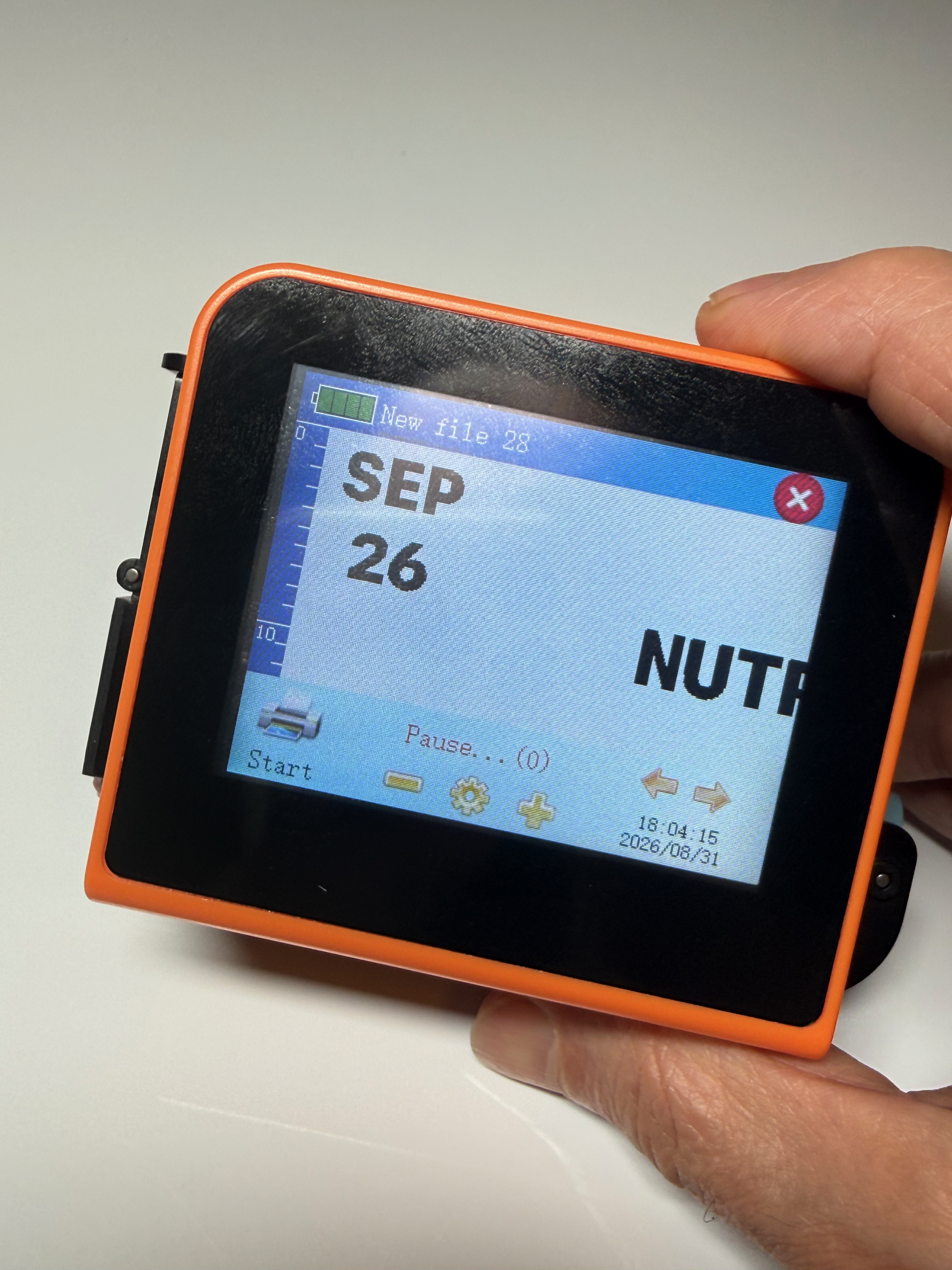
Print-ready mode
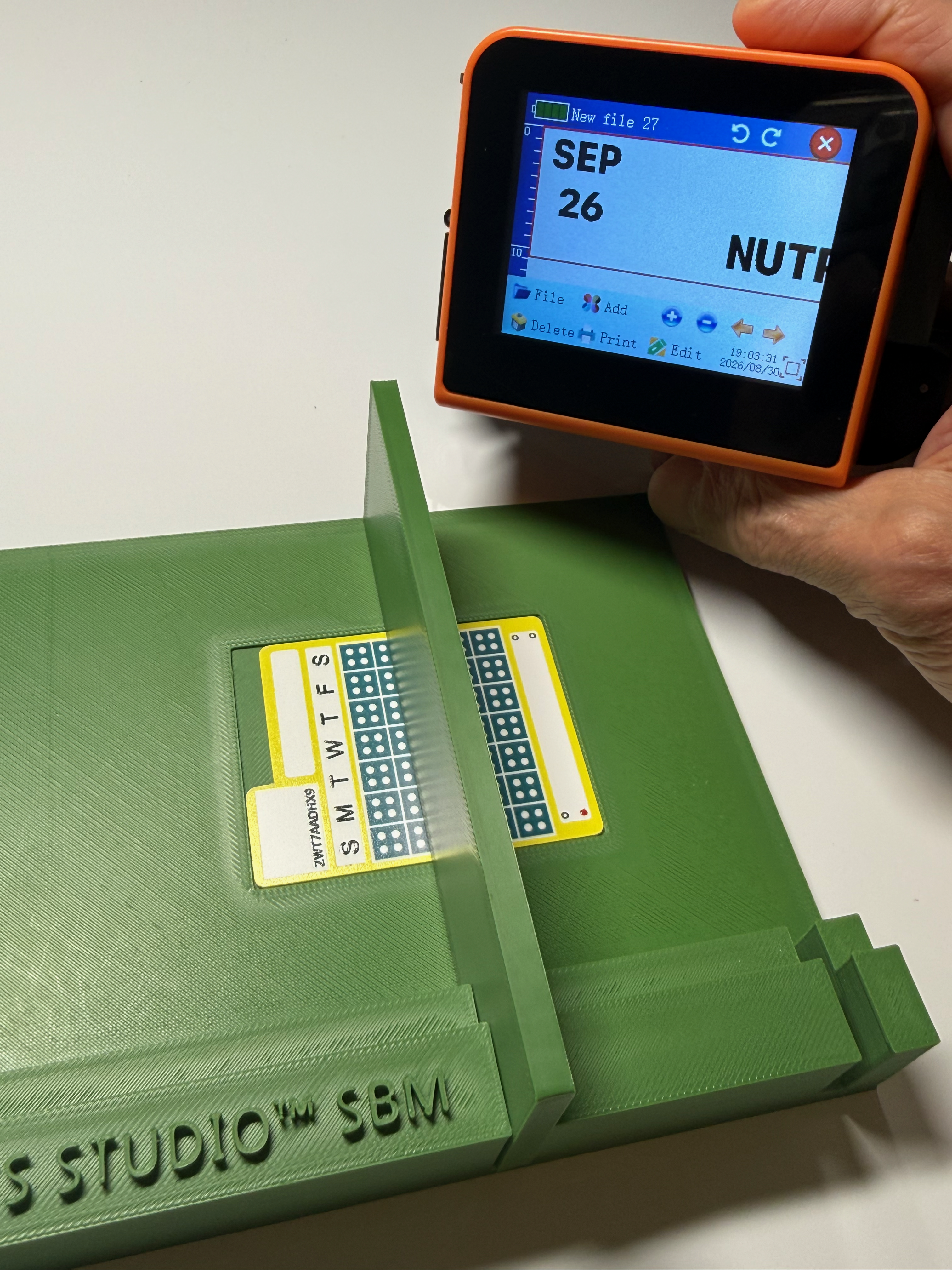
Your Domain Name segment is ready to print
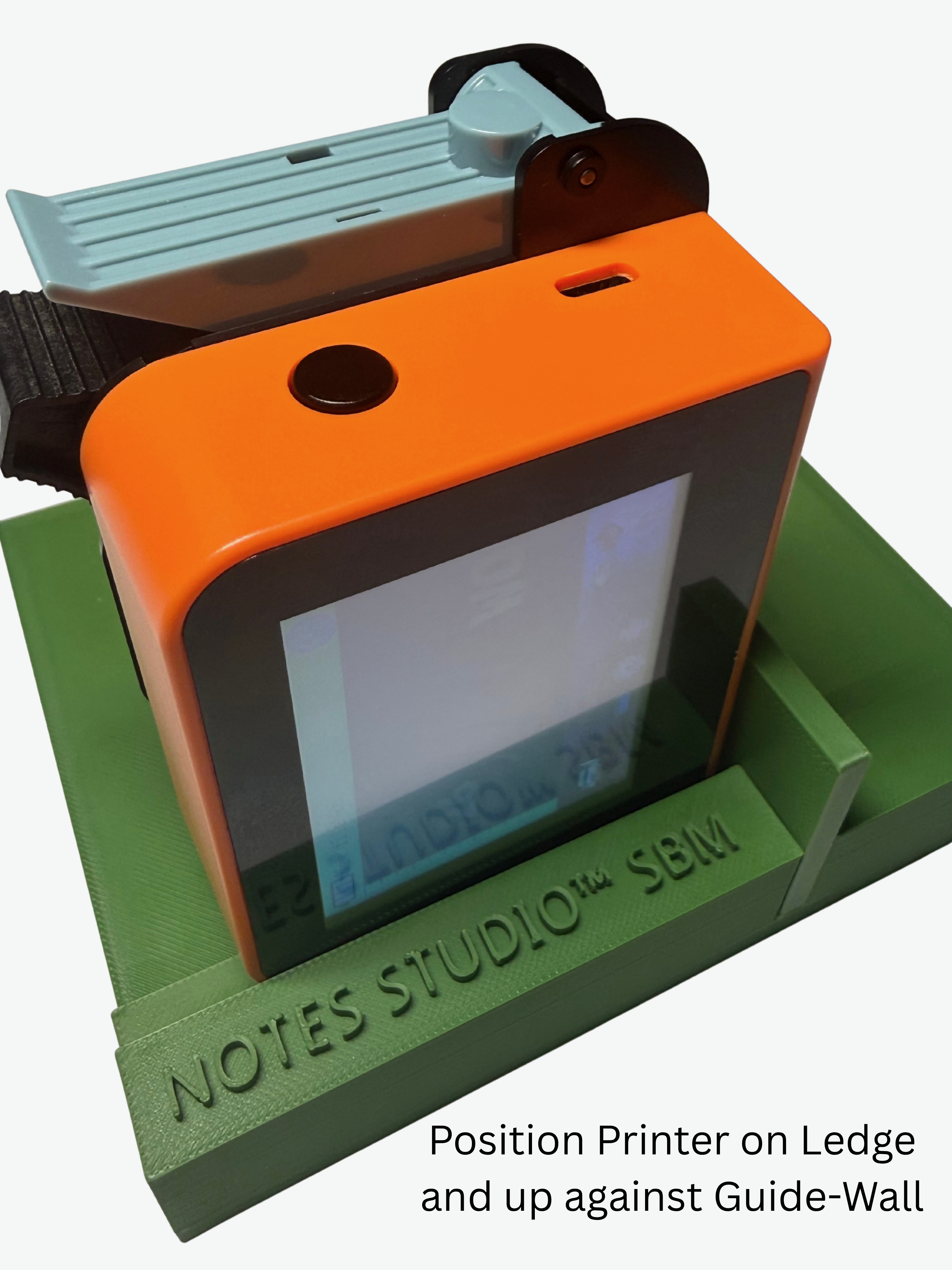
Set printer on the jig ledge and up against the Guide-Wall
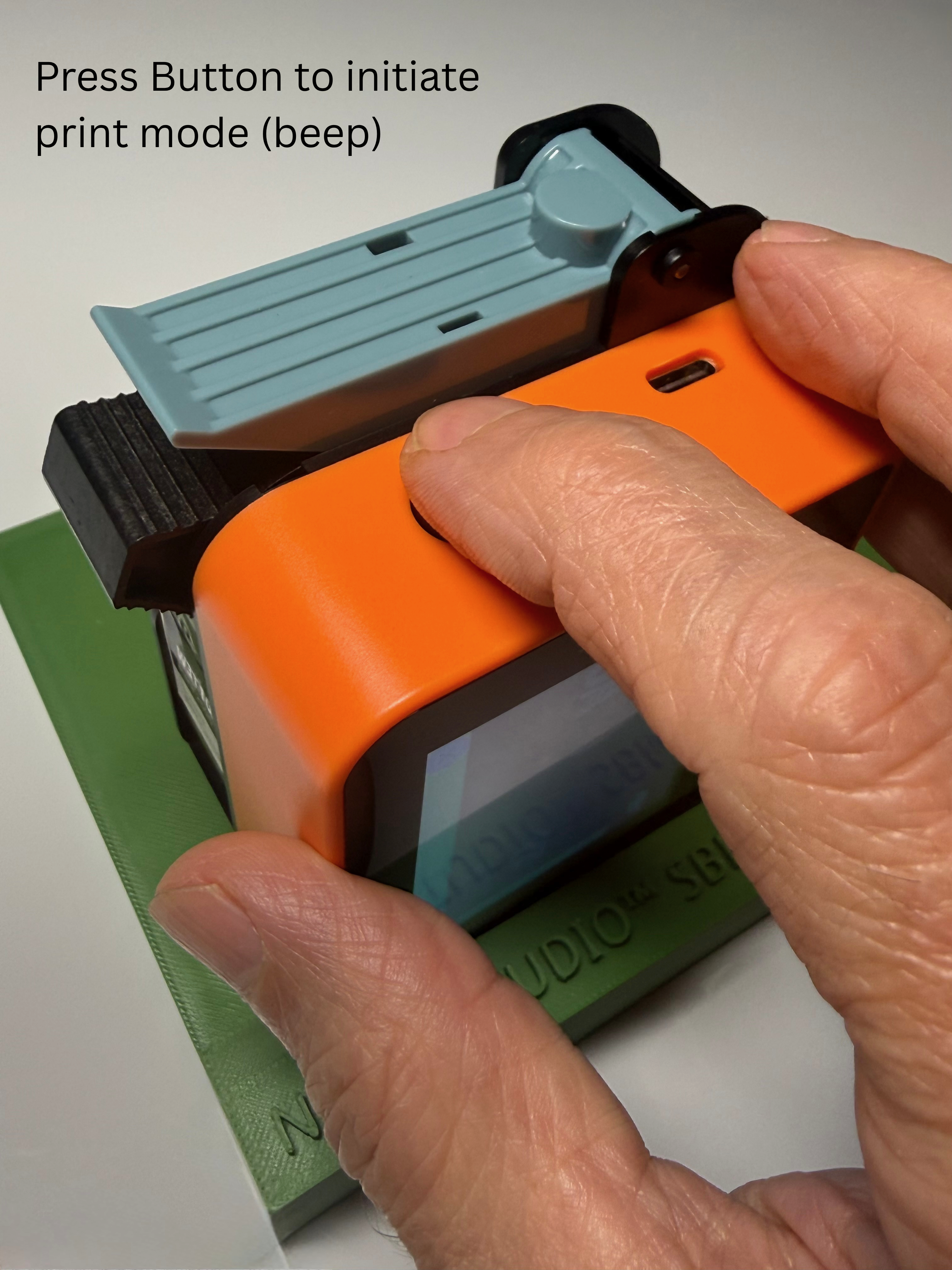
Press the button on top... until you hear a 'beep'
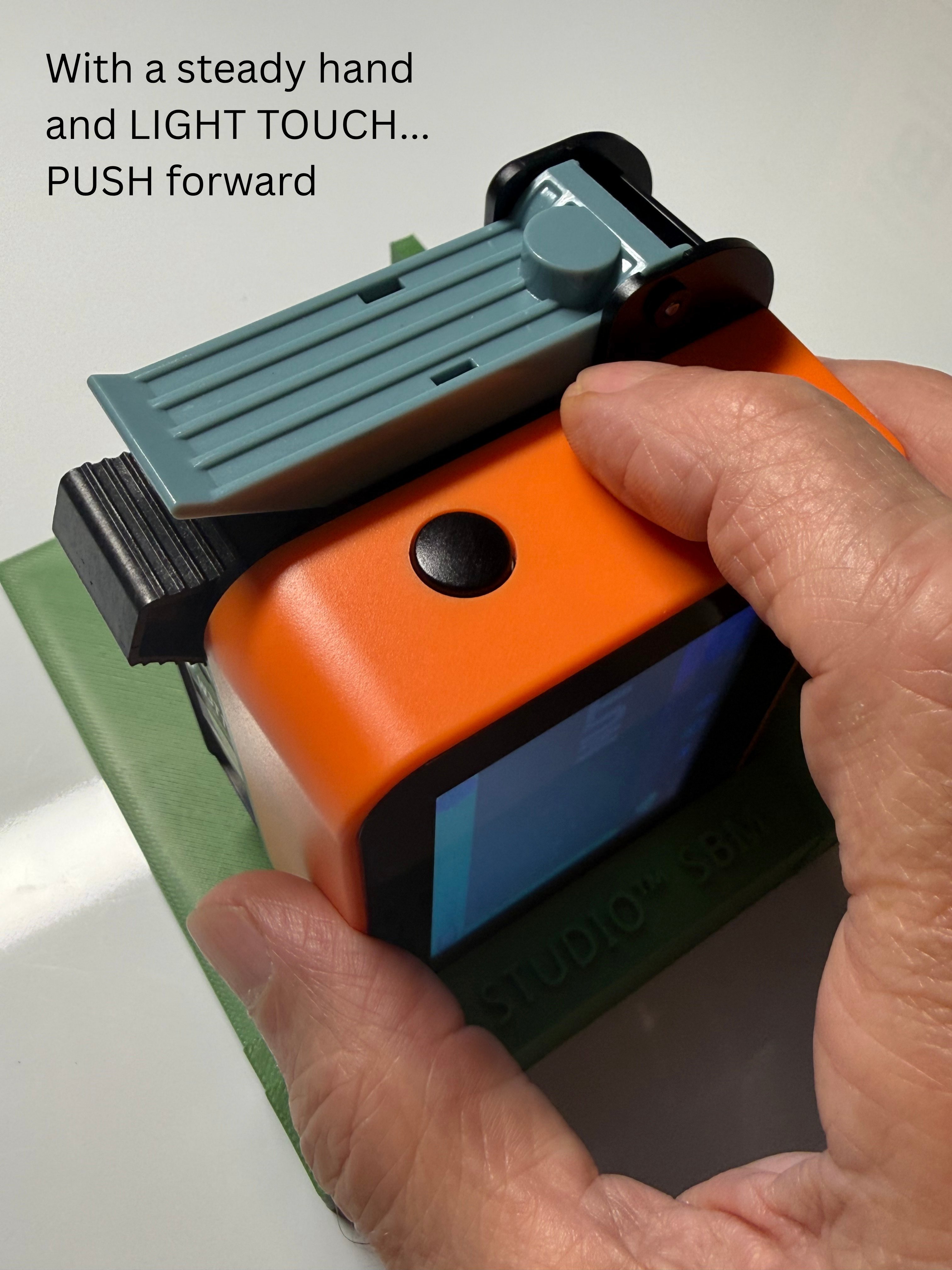
Use a steady hand and LIGHT TOUCH to PUSH the printer forward. You will hear another 'beep' when the print is complete.
![Your Domain Name is done. [NOTE: in this photo, Events have already been sent to the screen.]](../../../resources/pictorial_sbm/img_5458.png)
Your Domain Name is done. [NOTE: in this photo, Events have already been sent to the screen.]
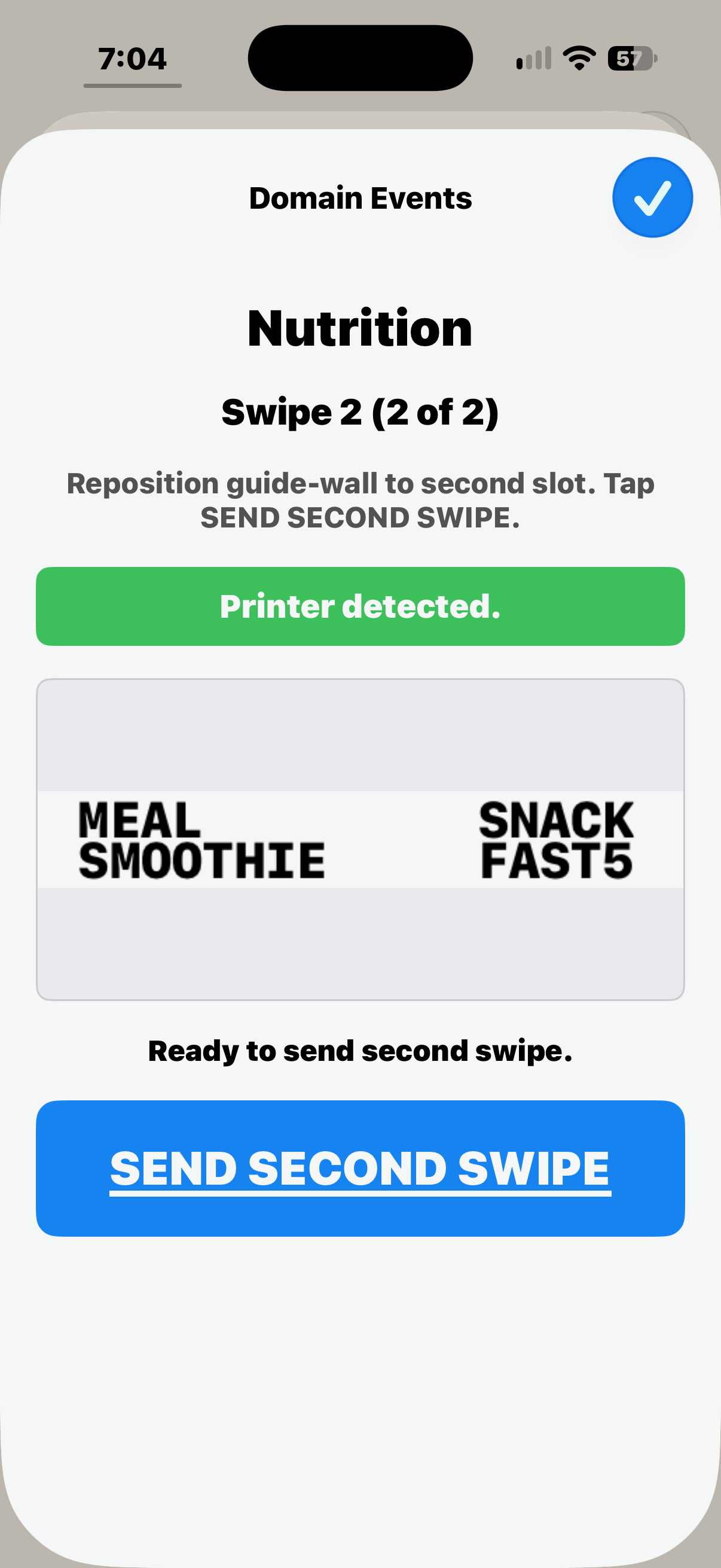
After tapping 'Continue', you will see your Domain Events segment. Tap 'SEND SECOND SWIPE'.
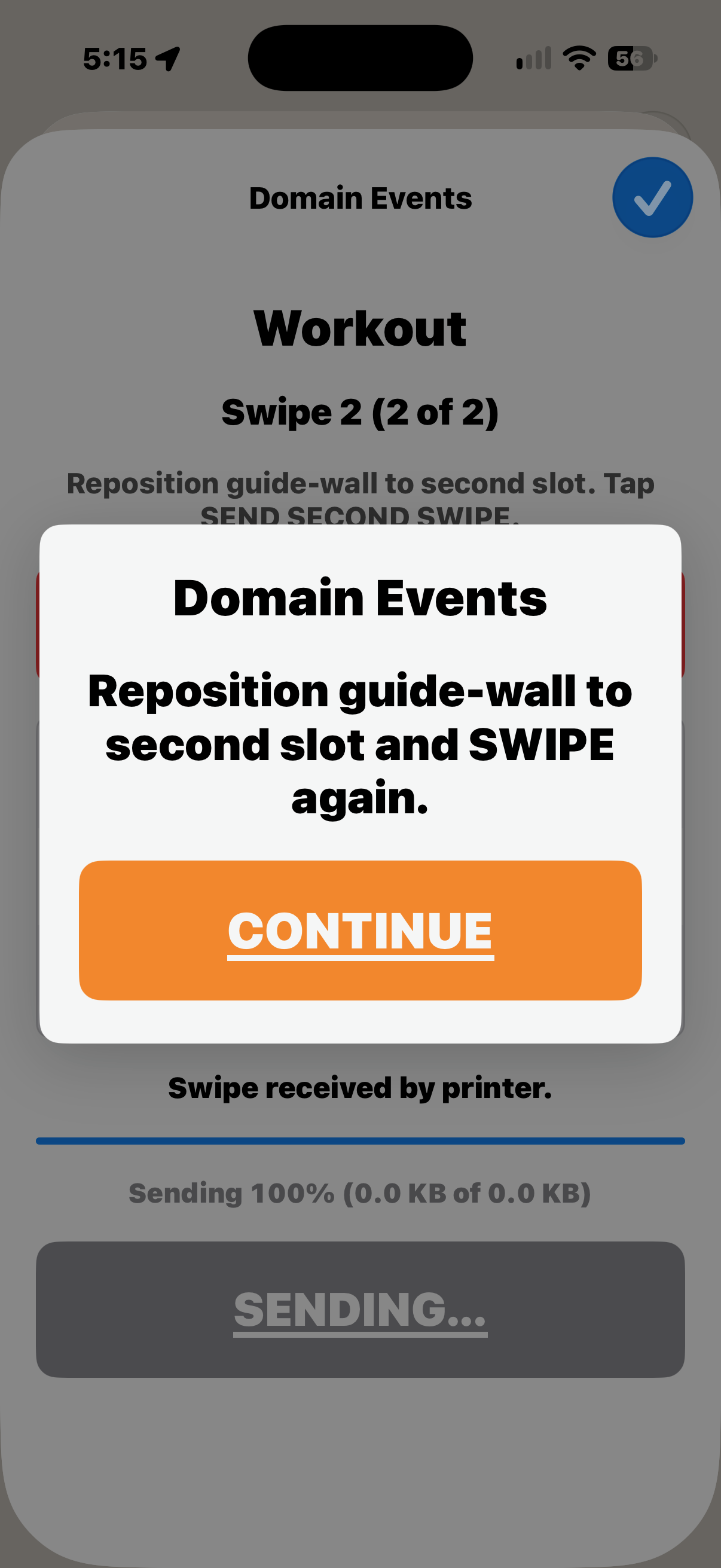
Move the Guide-Wall to Slot 2
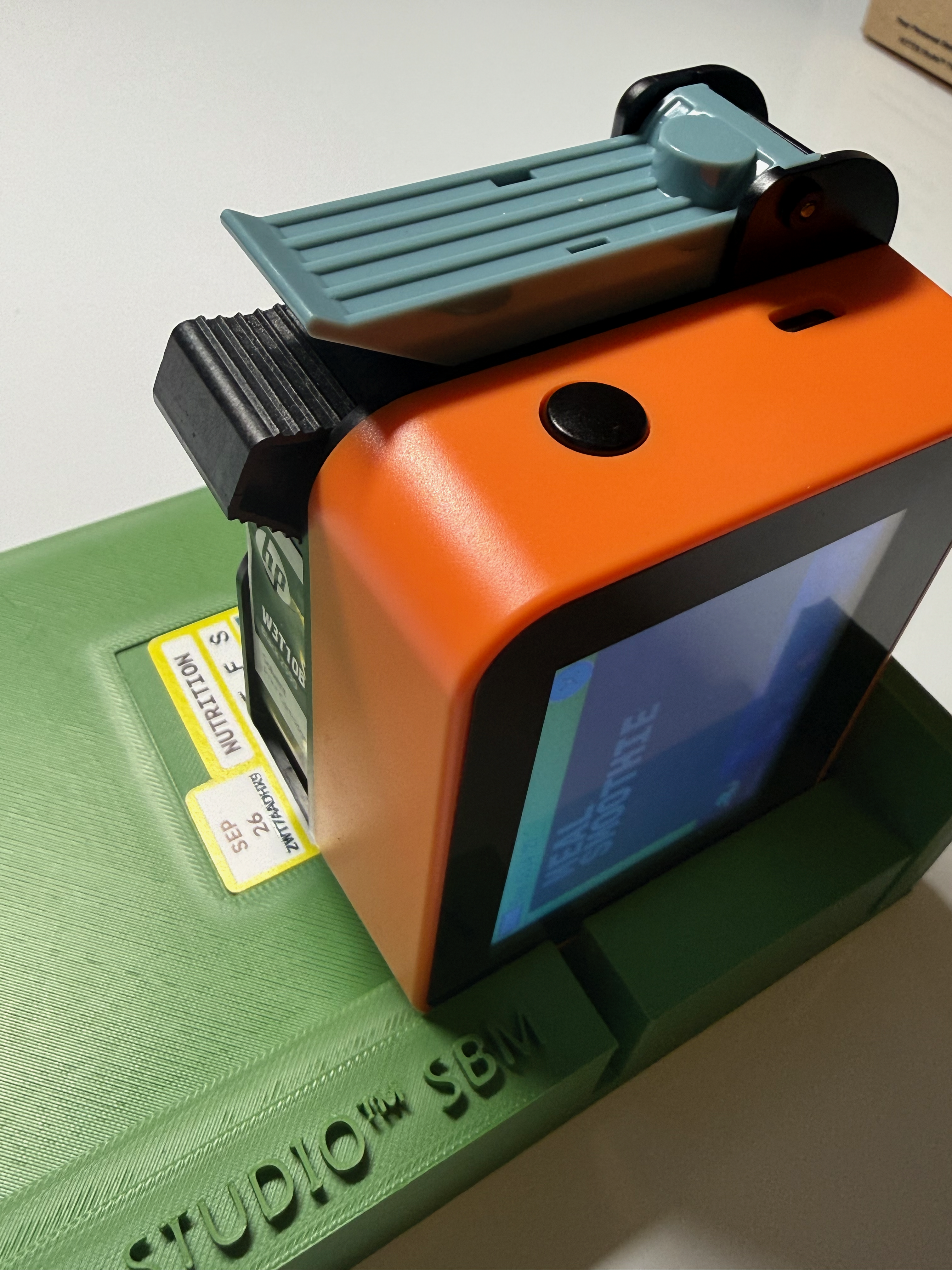
Reset your printer on jig ledge and against the guide-wall.
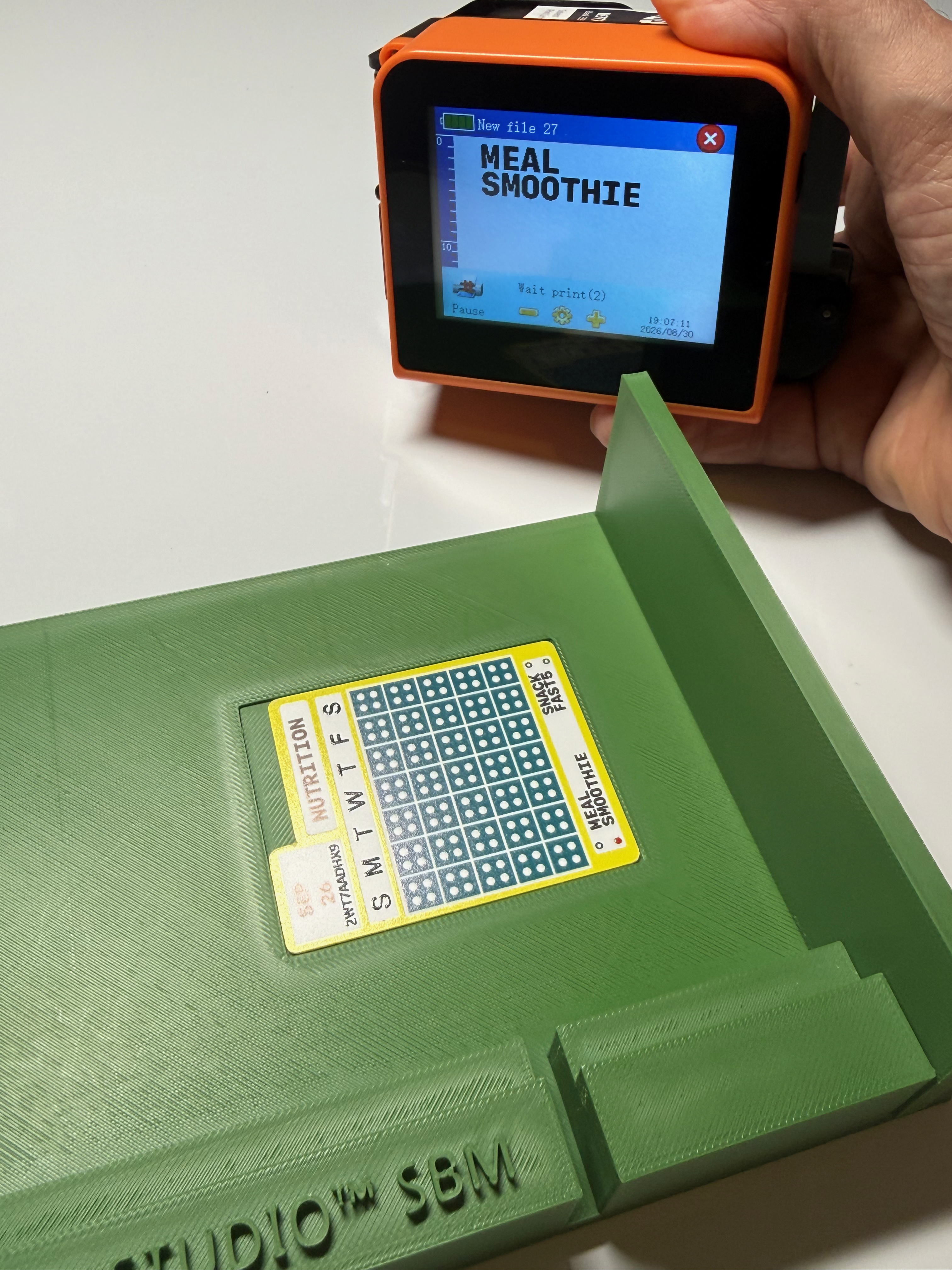
After your clean PUSH... Domain Events are done!
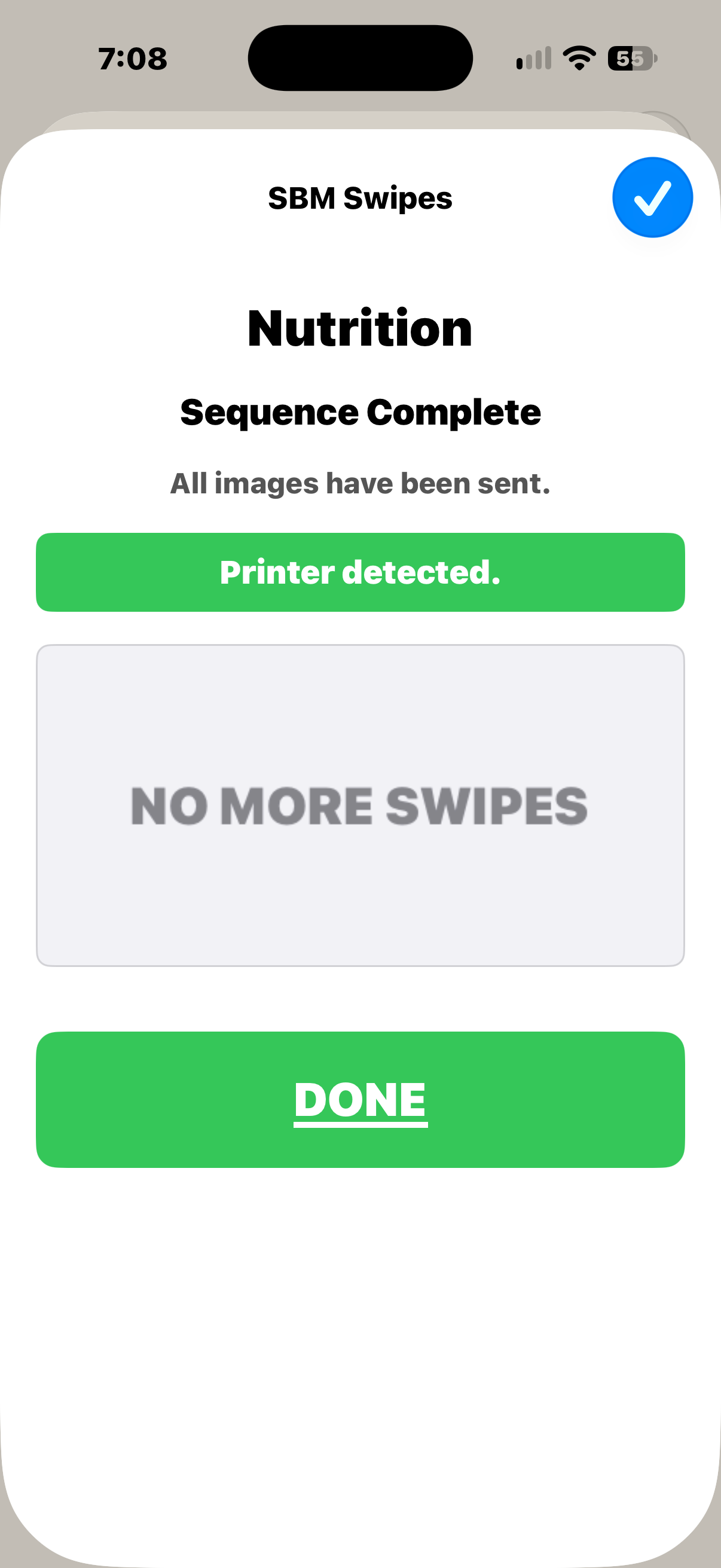
That's it! Congratulations!
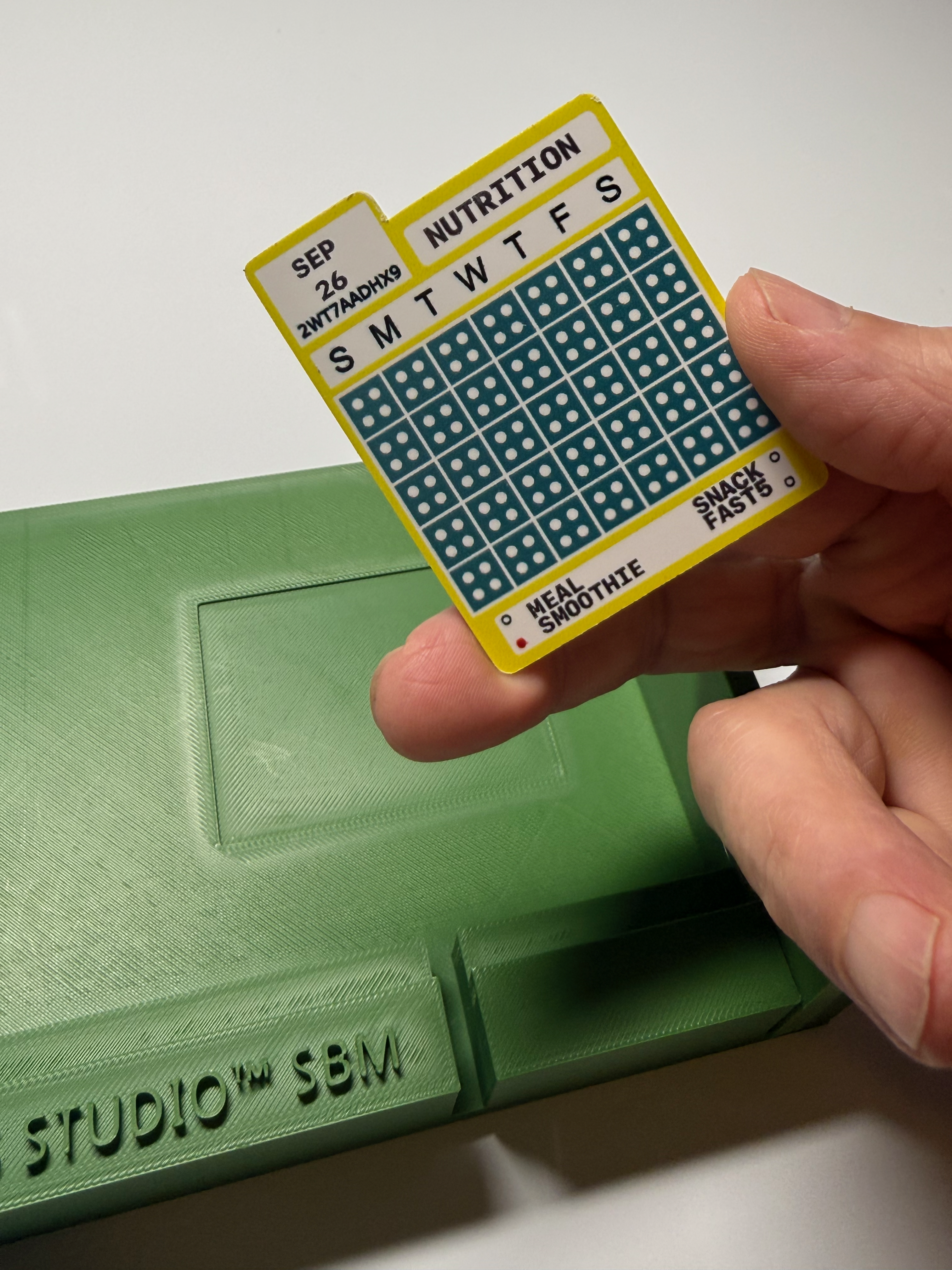
Your new Spatial Behavior Matrix is READY.
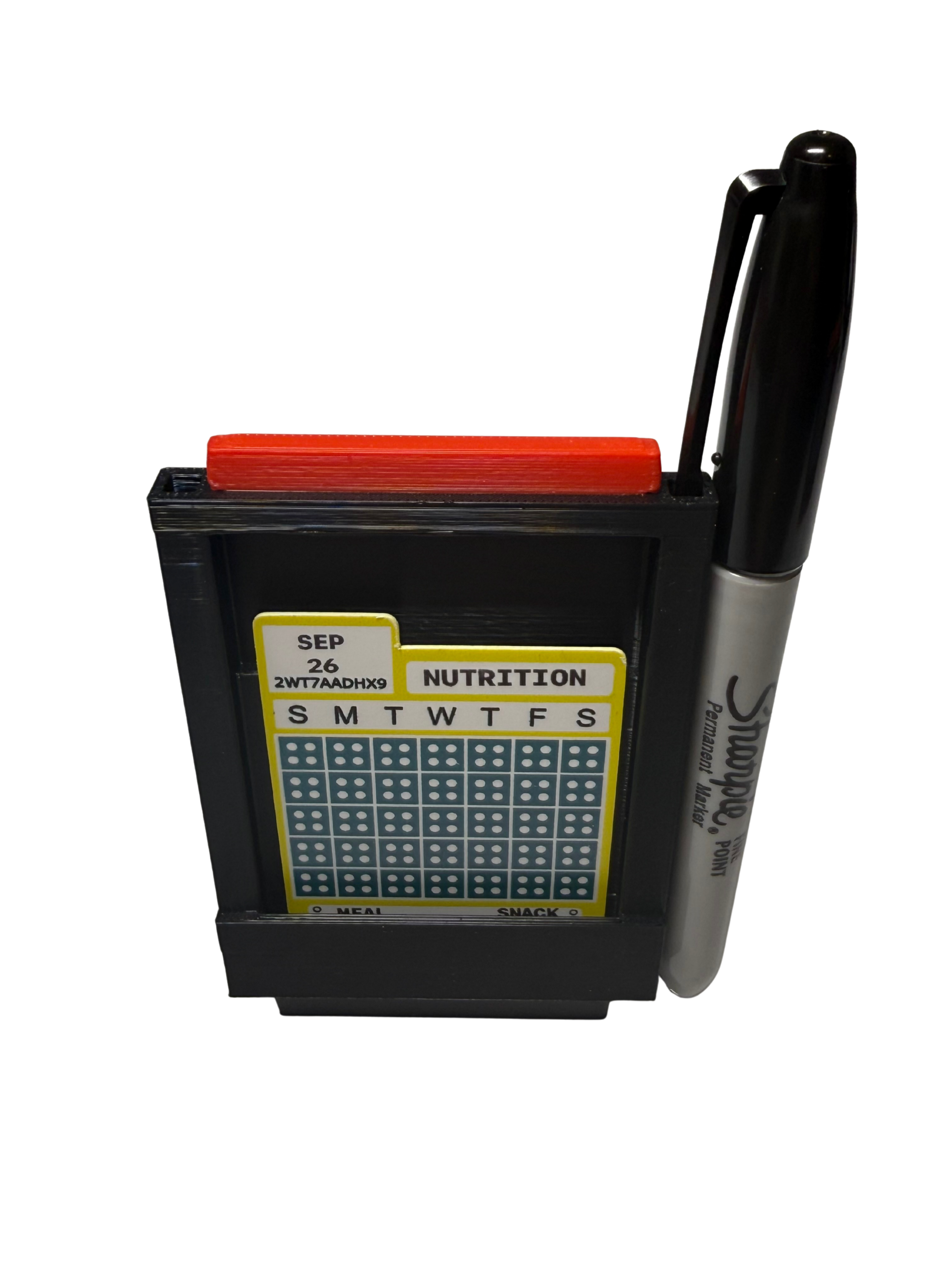
BOOM!
